For tutoring centers & academies
Class attendance, with the parent call one tap away.
When a student hasn't arrived, the next step is usually contacting a parent. Keep each class roster with contact numbers, record attendance as students come in, and reach a family from the same app.


Free on iOS & Android · Contains ads
Start with an organizer account. Your members don't all need to sign up.
By the Attendable team ·
A roster for each class time
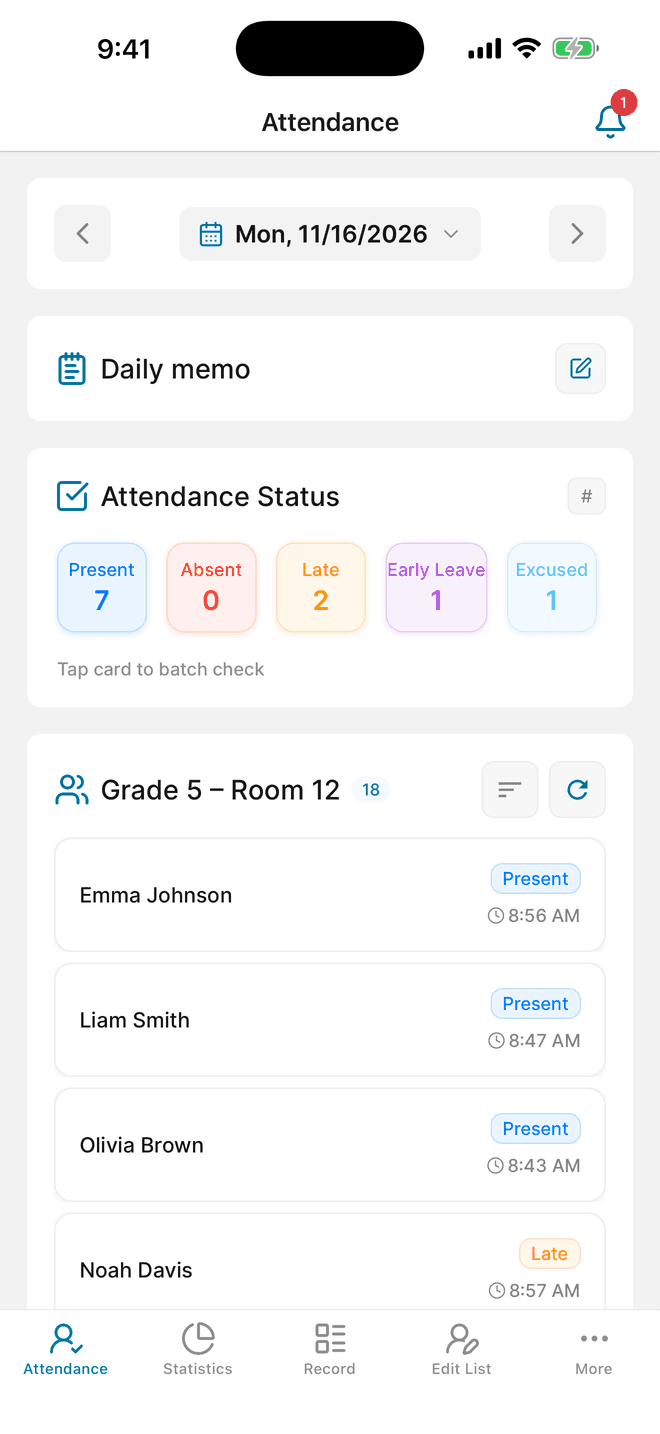
Tutoring centers often run the same subject at several times a week, and one student may attend two classes. Create a group per class time so each session has its own record. Hide groups for classes that have ended and reorder the rest so today's classes are at the top.
Example check types you can create
- Present
- Absent
- Late
- Excused
- Makeup class
Notes for academy staff
- Save a parent's number with each student
- Add the phone number in the student's member details. From the student's attendance record you can call or text that number directly, without searching your contacts while a class is waiting.
- Mark the no-shows in one step
- Ten minutes into class, tap the Absent card under Attendance Status and choose Check Empty Member. Everyone not yet recorded is marked absent, and you can start calling families.
- Let families send absences ahead of time
- A student or parent who signs in to the group as a member can submit an absence or late request with a reason. An organizer approves or rejects it, and approved requests are saved to attendance automatically.
- Bring the numbers to a parent meeting
- Open the student in Statistics for the term to see recorded absences and late arrivals by status. You can also save a PDF from Statistics; this can show a rewarded ad.
A workflow for your next session
01
Prepare class rosters with contact numbers
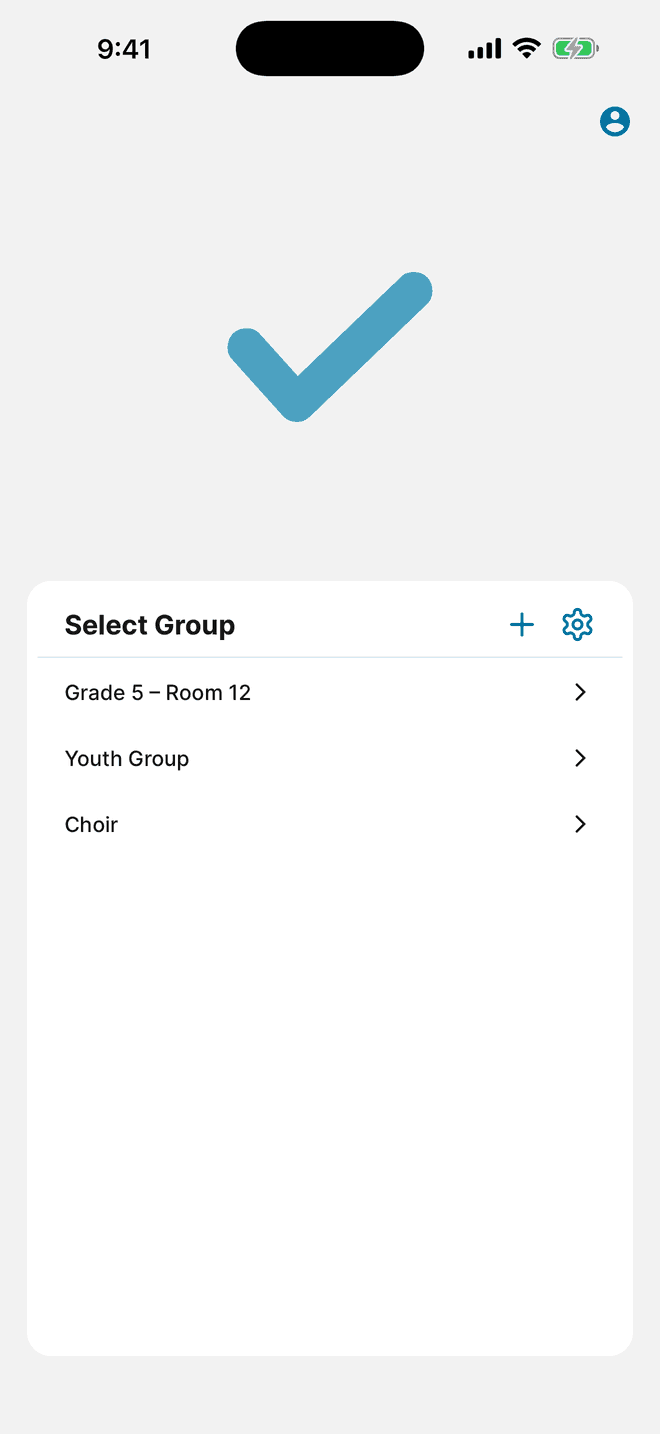
Create one group per class time. When you add students, include the phone number you use to reach the family.
- Create groups such as Mon/Wed 4 pm Math and Tue/Thu 6 pm English.
- Import students from your contacts or an Excel roster using the app's template, or add them one by one with a phone number.
- Hide groups for classes that have ended, and reorder the rest so the classes you teach today are easy to find.
02
Check in students and contact families
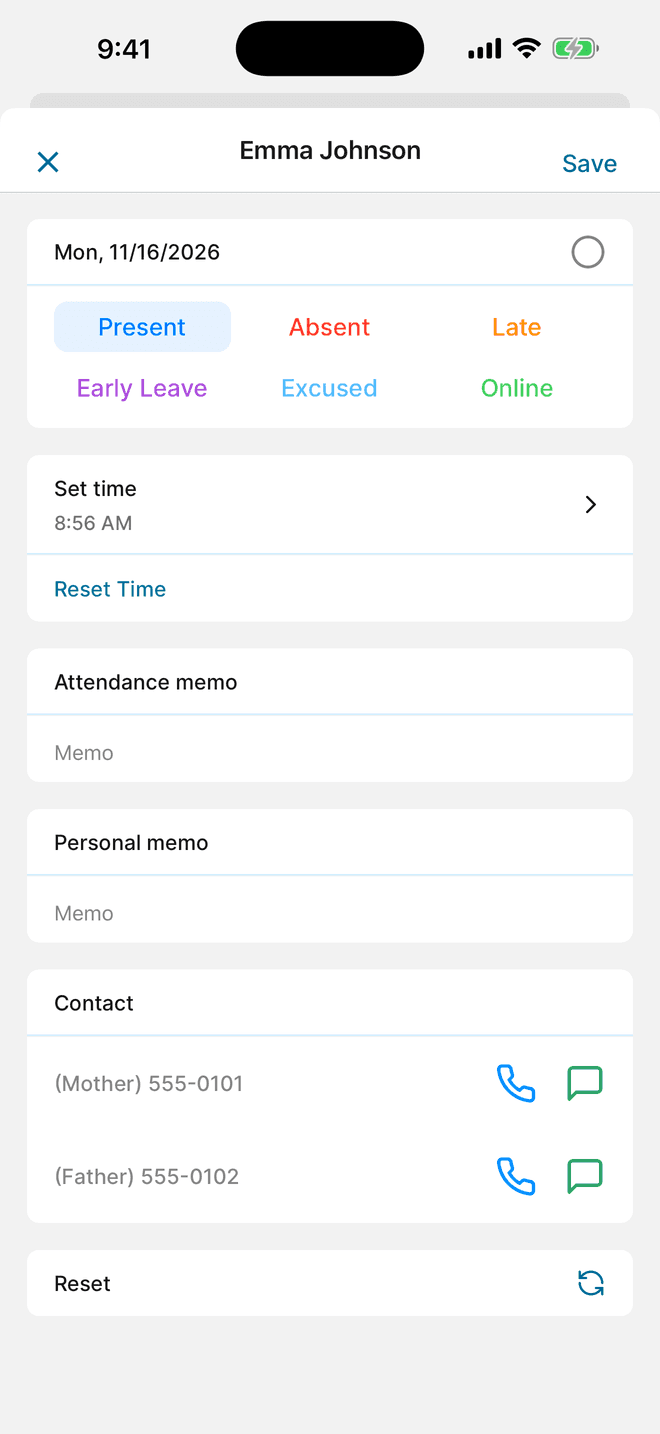
Record attendance as students arrive. With the group's automatic time setting on, the check time is saved too—useful when a parent asks what time their child arrived.
- Turn on the group's automatic time setting so each check saves the time.
- Swipe students as they arrive. When class starts, use the Absent card with Check Empty Member to mark anyone not yet recorded.
- For a missing student, open their attendance record and tap the call or text button to reach the saved number.
03
Review requests and term attendance
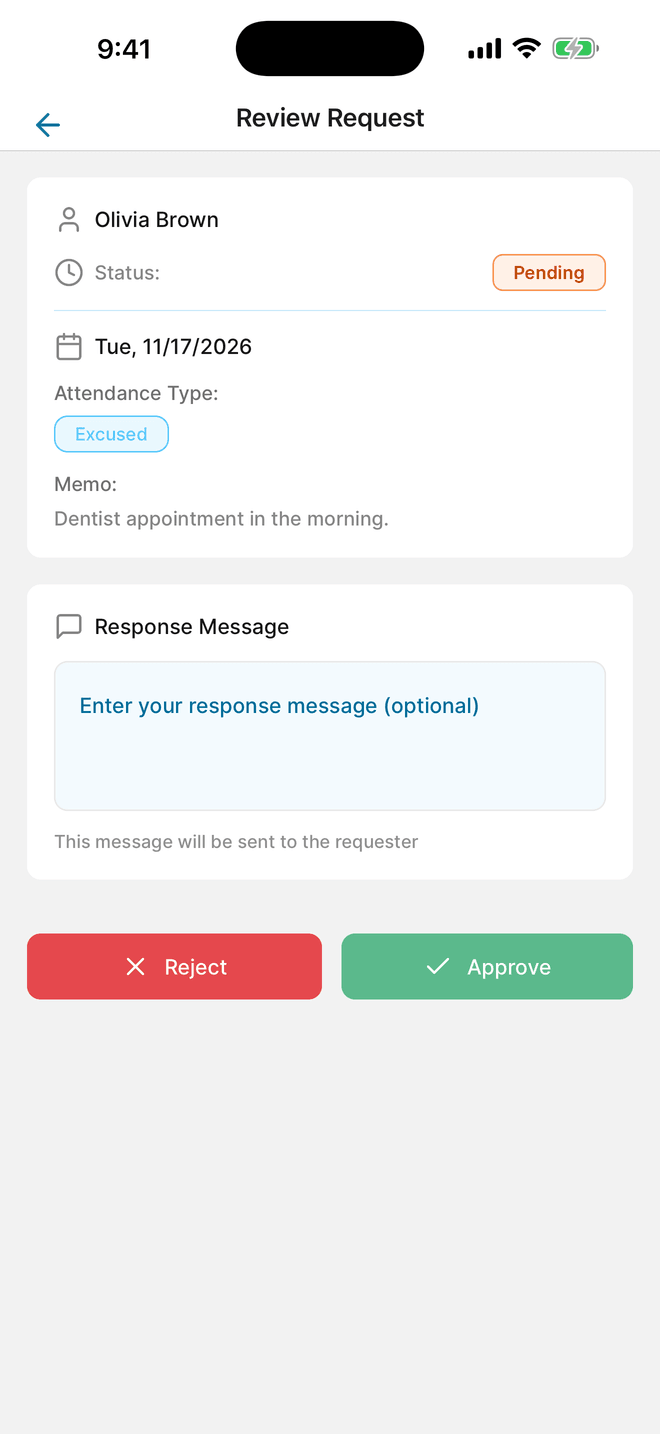
Absence and late requests from member accounts wait for an organizer's decision. At the end of a term, review each student's record for the period.
- Open the request, read the reason, and approve or reject it. Approved requests are written to the attendance record automatically.
- In Statistics, choose the term's dates and review each student's individual counts.
- Export an Excel file from More → Export data (AD), or save a PDF from Statistics. Both flows can show a rewarded ad.
Questions before you start
Can I contact a parent from the app?
Yes. Save a phone number in the student's details. From that student's attendance record, tap call or text to open your phone's dialer or messages with that number.
Can parents report an absence in advance?
Yes, if they sign in to Attendable as a member of the group. They submit an absence or late request with a reason, and an organizer approves or rejects it. Approved requests are saved to attendance automatically.
What if a student takes two classes?
Add the student to each class group. Each group keeps its own attendance, so a missed Tuesday class doesn't change the Thursday record.
Do other instructors need their own accounts?
Only if they record attendance or review records themselves. The group owner can share a class as an Editor (can record) or a Viewer (read-only).
Still on paper for now?
Download a free attendance sheet that matches this workflow, in Excel or as a printable PDF.
Put it into practice at your next session
Download Attendable, create a group, and add your roster.
Free on iOS & Android · Contains ads